

DiscoLike MCP Server Setup
Connect AI assistants like Claude Code, Codex, Claude Desktop, Cursor, VS Code, Windsurf, and Zed directly to DiscoLike company profiles, contacts, and enrichment data.
Server URL: https://api.discolike.com/v1/mcp
Copy the prompt below and paste it into a Claude Code session. Claude Code registers the server itself, then hands you a one-click browser sign-in. No API key.
Set up the DiscoLike MCP server in Claude Code for me.
DiscoLike connects by browser sign-in (OAuth), never by an API key, so don't ask me for one and don't add any --header flag.
1. Register it as a streamable-HTTP MCP server named "discolike" at user scope so it is available in every project:   claude mcp add --transport http --scope user discolike https://api.discolike.com/v1/mcp   If a discolike server already exists, run `claude mcp remove discolike --scope user` first so it is not duplicated.
2. Tell me to run /mcp, select discolike, and choose Authenticate. A browser tab opens on discolike.com; I log in (Google or Microsoft sign-in works) and click Authorize. If I don't have an account yet, create one for me with POST https://api.discolike.com/v1/public/signup (see https://docs.discolike.com/guides/agent-signup/), wait for me to confirm the email, then have me authenticate again.
3. Confirm it worked before calling it done: the discolike tools should be listed under /mcp, or run a query like "how many companies in the US do managed IT services".
What you will see
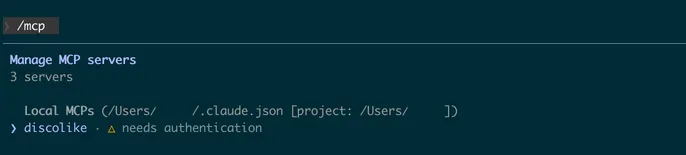
After the prompt runs, /mcp shows discolike with a “needs authentication” status.
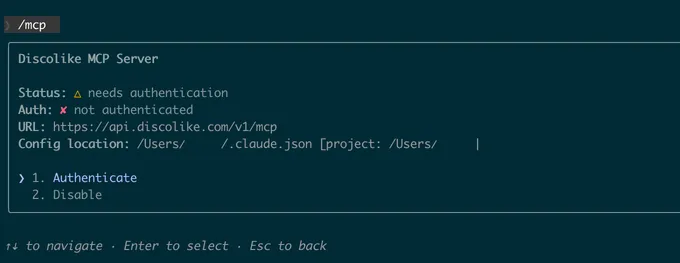
Choose Authenticate; your browser opens the authorization flow.
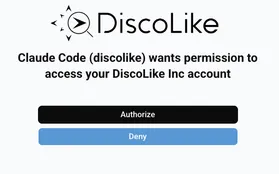
Click Authorize to grant Claude Code access to your DiscoLike account.
Prefer to run it yourself? The one command is:
claude mcp add --transport http --scope user discolike https://api.discolike.com/v1/mcpCopy the prompt below and paste it into a Codex chat. Codex configures the server itself, then hands you a browser sign-in. No API key.
Set up the DiscoLike MCP server for me in Codex.
DiscoLike connects by browser sign-in (OAuth), never by an API key, so don't ask me for one and don't set bearer_token_env_var.
1. Add a streamable-HTTP MCP server named discolike with:   codex mcp add discolike --url https://api.discolike.com/v1/mcp --oauth-resource https://api.discolike.com/v1/mcp   If a discolike entry already exists in ~/.codex/config.toml (%USERPROFILE%\.codex\config.toml on Windows), update it in place instead of duplicating it.
2. Tell me to fully quit and reopen Codex so it picks up the new config.
3. Get me signed in. In the desktop app or IDE extension, tell me to open the MCP servers list and press Authenticate next to discolike. In the CLI, run `codex mcp login discolike` yourself. A browser tab opens on discolike.com; I log in (Google or Microsoft sign-in works) and click Authorize. If I don't have an account yet, create one for me with POST https://api.discolike.com/v1/public/signup (see https://docs.discolike.com/guides/agent-signup/), wait for me to confirm the email, then have me sign in again.
4. Confirm it worked before calling it done: /mcp should list discolike and its tools, or run a query like "how many companies in the US do managed IT services".
Prefer to run it yourself? The one command is:
codex mcp add discolike --url https://api.discolike.com/v1/mcp --oauth-resource https://api.discolike.com/v1/mcpCodex opens your browser to authorize. Sign in to DiscoLike and click Authorize.
1. Add the connector
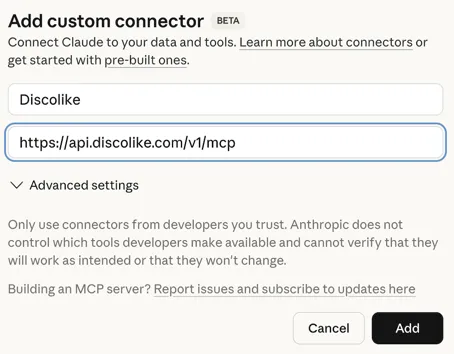
Go to Claude Desktop → Settings → Connectors → Add Custom Connector.
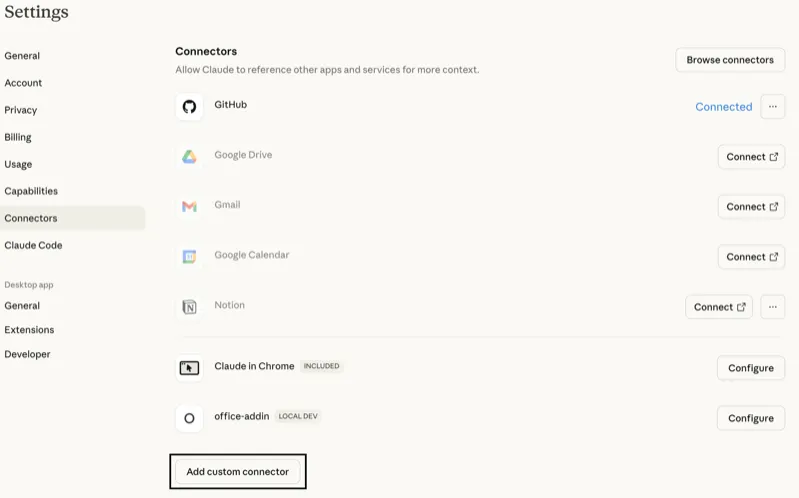
In the “Add Custom Connector” window:
- Name: DiscoLike
- MCP Server URL:
https://api.discolike.com/v1/mcp
Click Add.
2. Connect
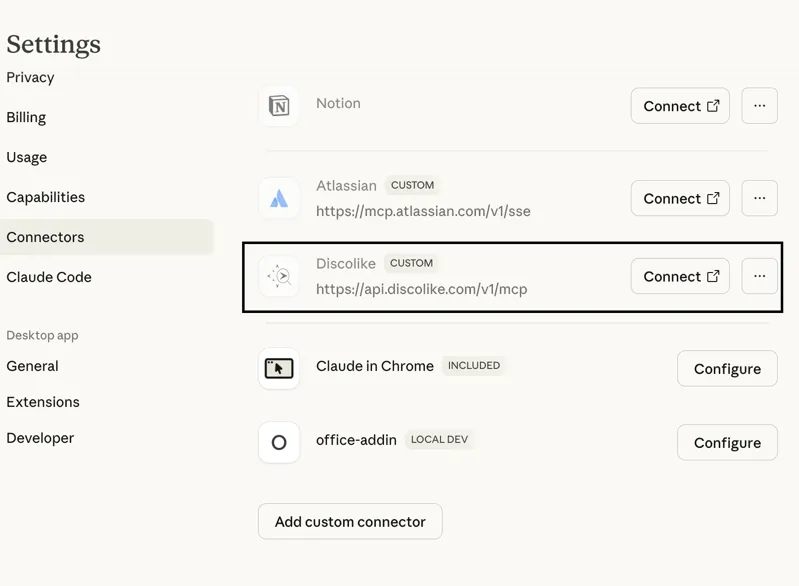
DiscoLike will appear in the connectors list. Click Connect next to it.
3. Authorize in your browser
A browser window will open. Log in to DiscoLike and click Authorize.
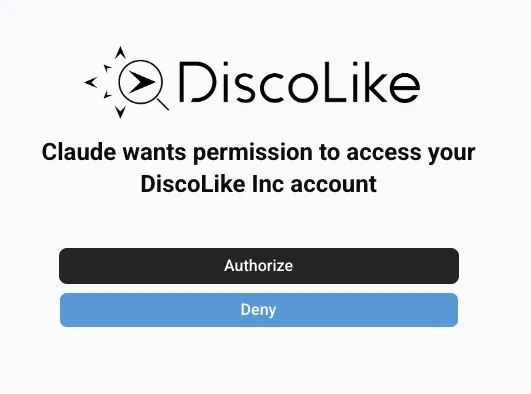
You will be redirected back to Claude Desktop.
1. Create the config file
Add to .cursor/mcp.json (project) or ~/.cursor/mcp.json (global):
{ "mcpServers": { "discolike": { "url": "https://api.discolike.com/v1/mcp" } }}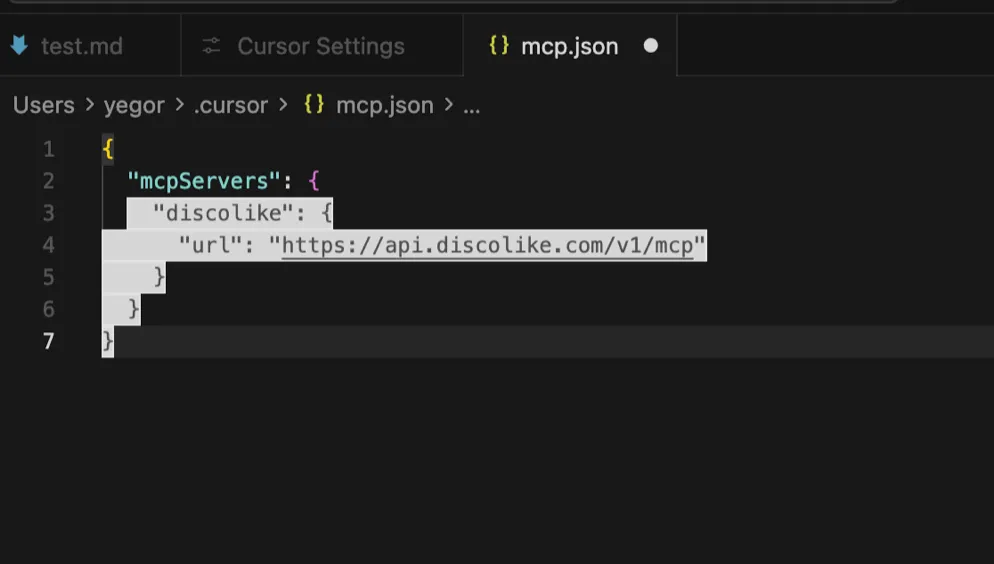
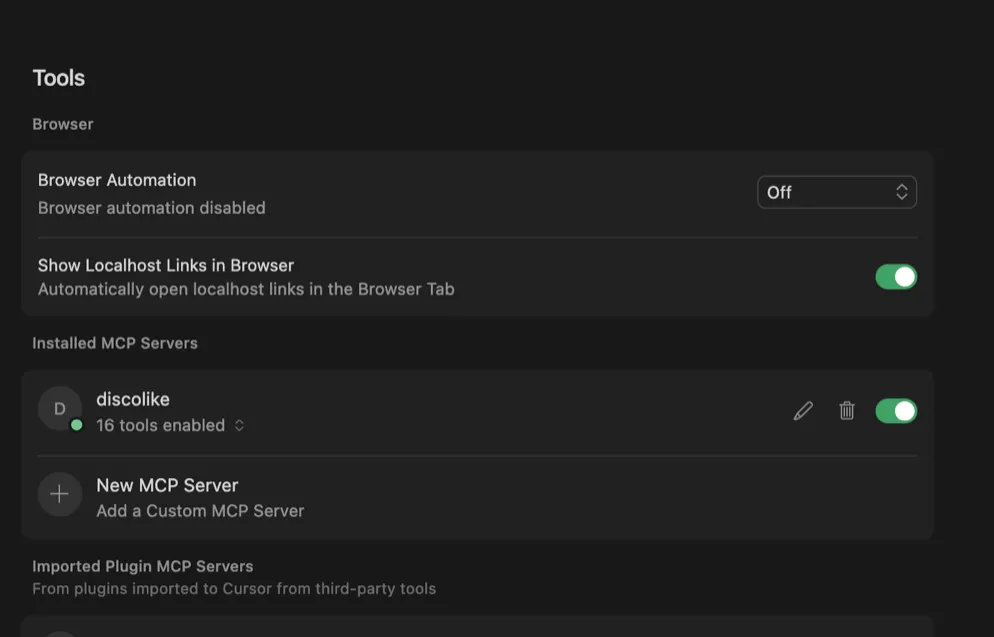
2. Open Cursor Settings → Tools
You’ll see DiscoLike appear under “Installed MCP Servers” with a “Needs authentication” status.
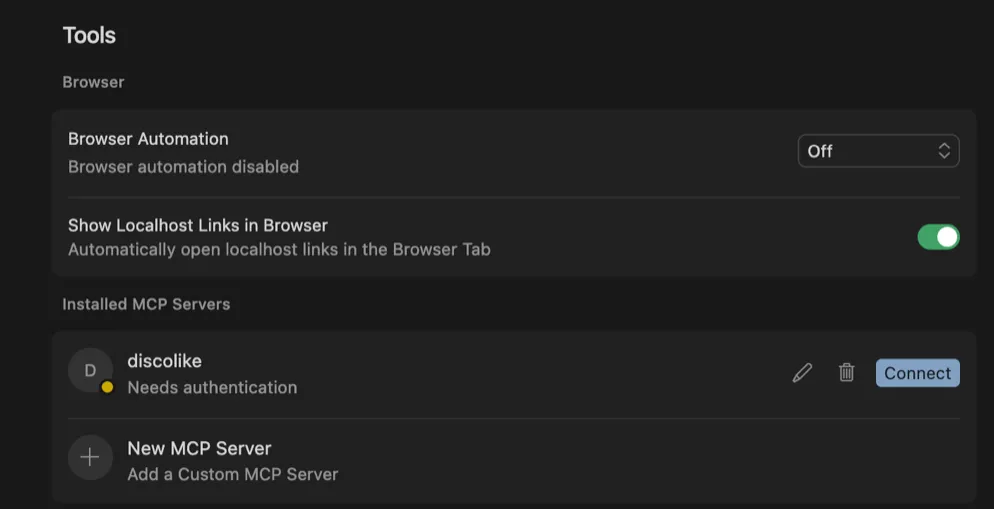
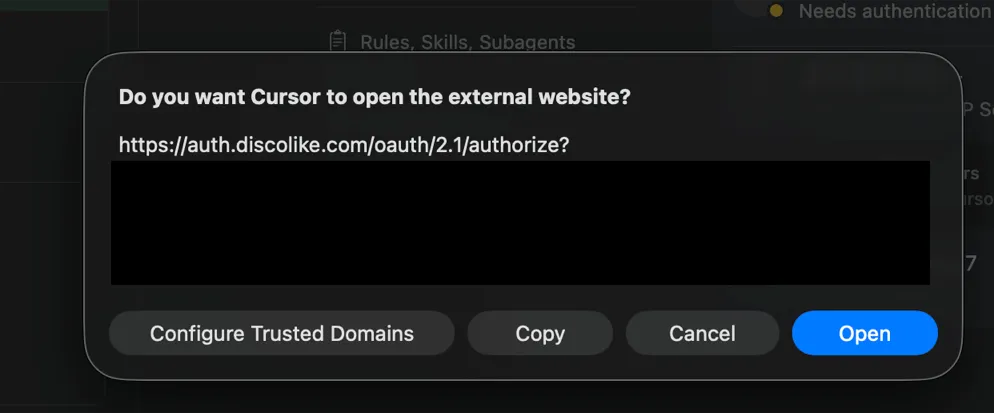
3. Click “Connect” to authenticate
Cursor will prompt you to open the authorization URL.
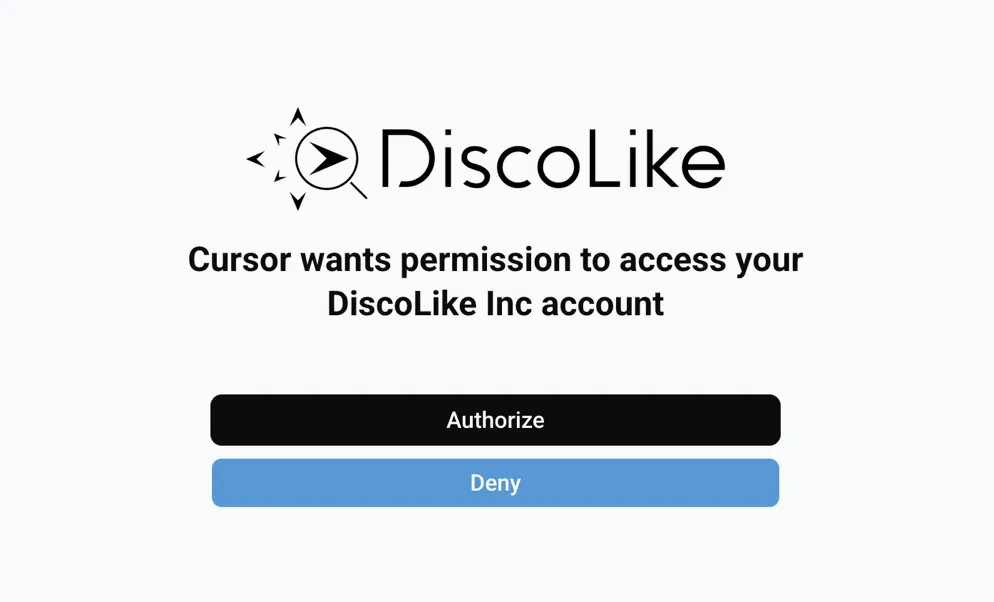
4. Authorize in your browser
Click “Authorize” to grant Cursor access to your DiscoLike account.
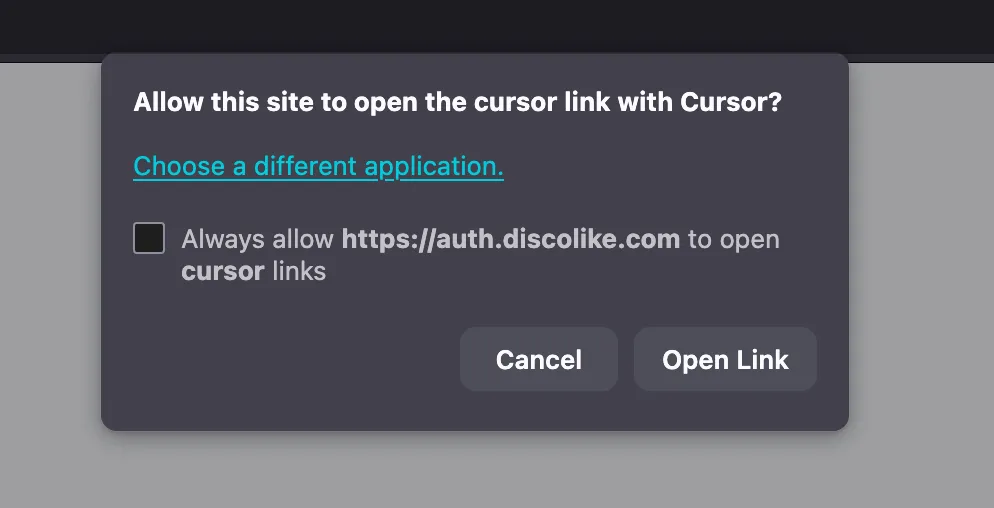
5. Return to Cursor
Your browser will ask to open the callback link in Cursor.
6. Connected!
DiscoLike will show as connected with all tools available.
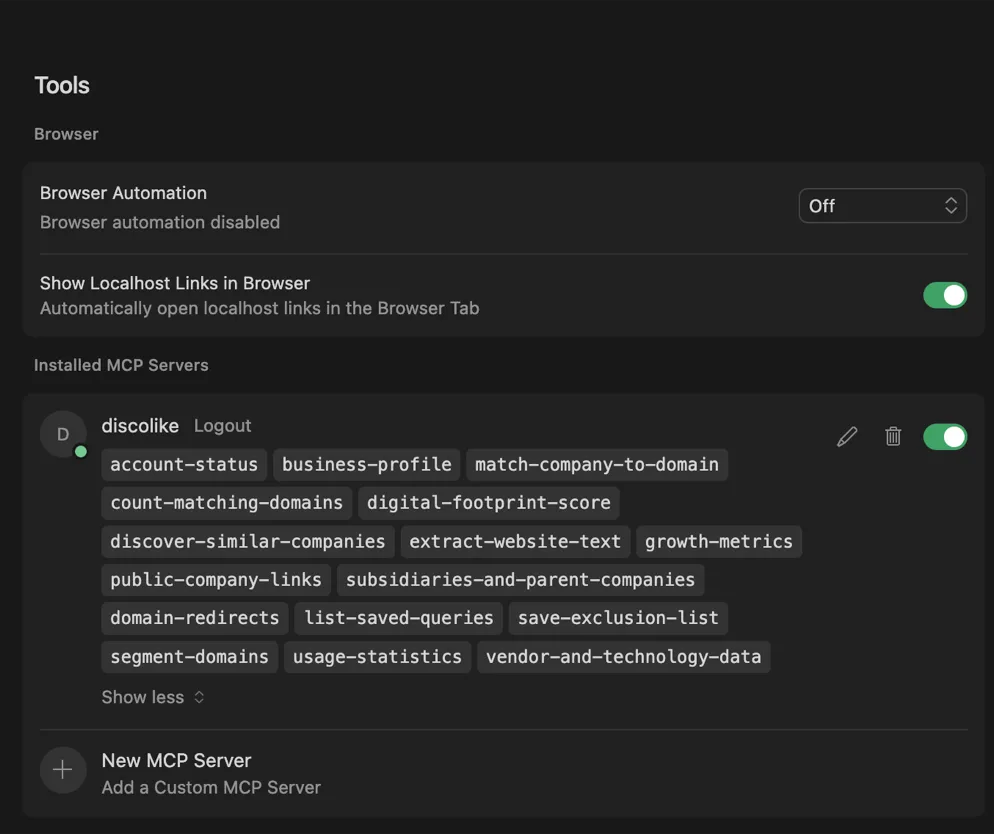
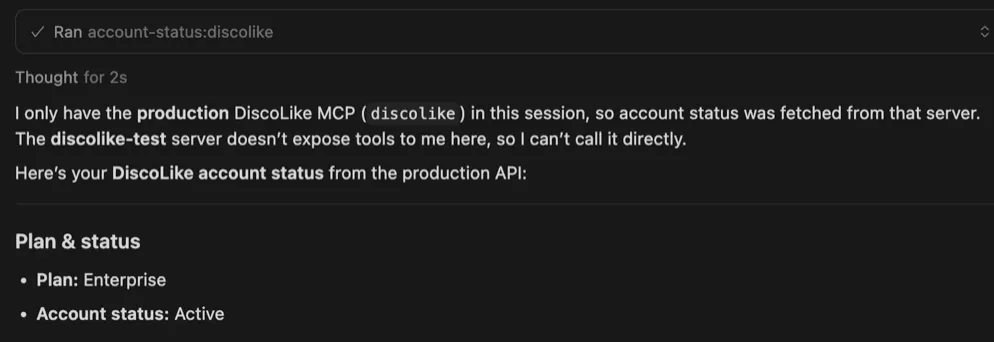
7. Start using DiscoLike tools
Ask Cursor to use any DiscoLike tool in your conversations.
Add to .vscode/mcp.json:
{ "servers": { "discolike": { "type": "http", "url": "https://api.discolike.com/v1/mcp" } }}VS Code uses servers rather than mcpServers, each entry needs "type": "http", and browser sign-in needs VS Code 1.101 or newer. After saving, VS Code prompts you to trust the server, then to sign in.
Add to ~/.codeium/windsurf/mcp_config.json:
{ "mcpServers": { "discolike": { "serverUrl": "https://api.discolike.com/v1/mcp" } }}Windsurf’s remote-server field is serverUrl, not url. After saving, open the MCP panel in Cascade and click Login next to discolike.
Add to ~/.config/zed/settings.json:
{ "context_servers": { "discolike": { "url": "https://api.discolike.com/v1/mcp" } }}Save and Zed prompts you to authenticate; log in to DiscoLike in the browser and you are connected.
Agent skill package
Section titled “Agent skill package”The DiscoLike agent skill package teaches an agent when to reach for DiscoLike, which access mode to pick, how to search well, and how to open an account without a browser. It has native adapters for Claude Code, Codex, Cursor, Gemini CLI, GitHub Copilot, Windsurf, Grok, and agents that read AGENTS.md.
The skill is guidance, not a replacement for this MCP connection: configure the server above before expecting the agent to call DiscoLike tools.
For Claude Code, install it from the marketplace:
/plugin marketplace add Discolike/discolike-skills/plugin install discolike@discolikeFor every other client, follow the installation table in the skill package README. Every adapter uses the same canonical SKILL.md, so the workflow and its paid-operation safeguards stay consistent across clients.
The MCP server also serves the same skills as resources, so a client that reads MCP resources can load them without installing anything: skill://discolike/SKILL.md, skill://setup/SKILL.md and skill://feedback/SKILL.md, with each skill’s supporting files under skill://<name>/<file> (for example skill://discolike/flows.md) and a file list at skill://<name>/_manifest.